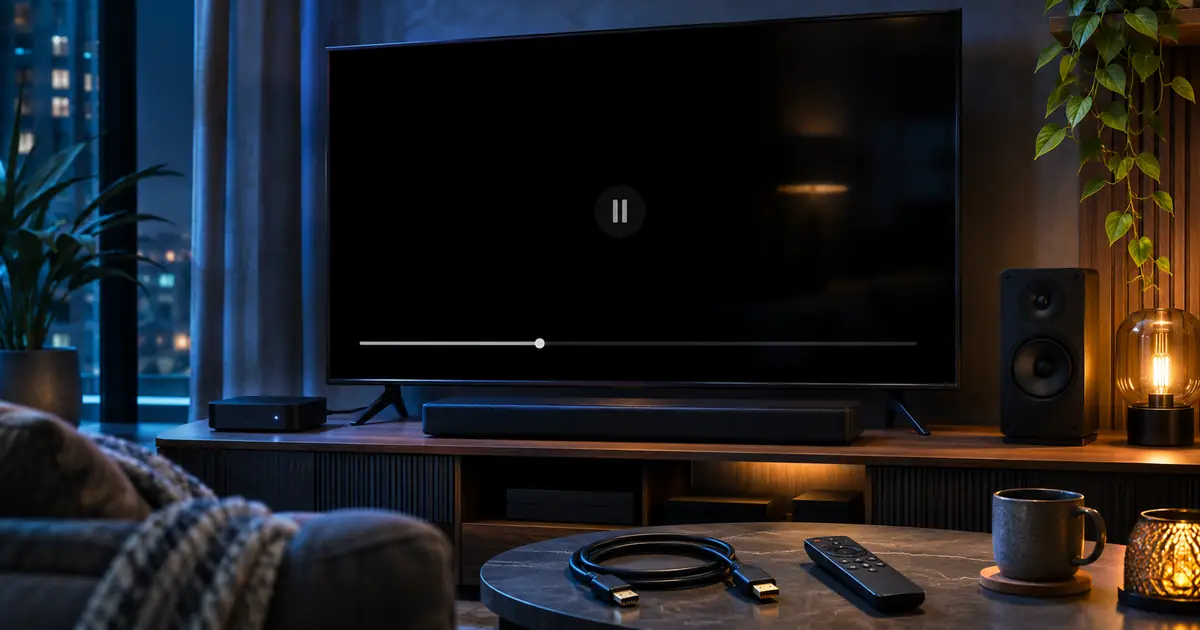
An IPTV black screen or missing sound is usually isolated fastest by testing scope, not by changing every setting. Check whether the player interface still appears, whether audio or video is present, whether one channel or all streams fail, and whether the same authorized stream works in another compatible player or device. Those four observations separate a display or audio route problem from a decoder, app, device, account, or source problem.
Immediate five-minute diagnostic
- Open the player menus to confirm the television or display is still producing a picture.
- Test at least two authorized live streams and one on-demand item if available.
- Close and reopen the player, then restart the device once.
- Test the same affected stream in another authorized compatible player or device.
- Check mute, audio output, HDMI input, and cable seating before changing codec settings.
- Record the exact error and the one-channel-versus-all-streams result.
If the symptom is repeated pausing, spinning, freezing, or lag rather than a stable black or silent output, use the separate IPTV buffering troubleshooting guide.
Identify the Exact IPTV Black Screen or No-Sound Symptom
A black screen with player controls visible is different from a completely blank display. If the guide, pause icon, or app menu appears over a black video area, the display still works and the failure is inside the playback path. If the entire television is blank, shows No Signal, or cannot display its own volume bar, inspect the television, selected input, external device, and cable before blaming the IPTV player.
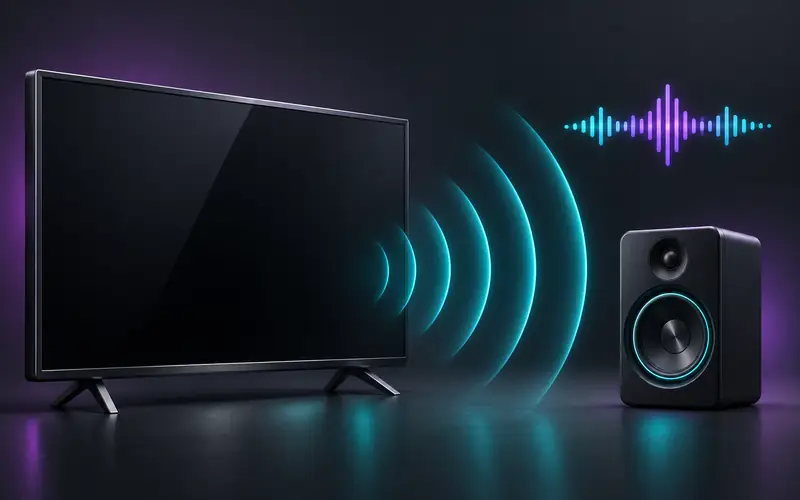
Audio-only playback means the stream or player is producing sound while the video path fails. Silent video means the picture decodes while the audio track, output route, mute state, or receiver compatibility fails. A spinner or explicit playback error means the app has not reached stable playback. A frozen last frame can point to a decoder stall or stream interruption rather than a true black-screen state.
| What you see or hear | What it proves | Check next |
|---|---|---|
| Black video with menus and audio | Display and audio path are active | Video codec, decoder, resolution, and player |
| Normal video with no sound | Video decode works | Mute, audio track, output, passthrough, and audio codec |
| Blank display or No Signal | The TV is not receiving a usable external-device picture | Input, HDMI, power, output resolution, and cable |
| Player page is empty | The app opened but content did not populate | Login, playlist, account, app data, and source |
| Explicit playback error | The app rejected or could not open the item | Exact error, account status, URL validity, DRM, and source |
| All playback stops after app launch | Scope may be app- or device-wide | Restart, update, cache, and comparison player |
Use the TV menu or volume overlay as a dividing line. If it appears, an external-device black picture is more likely to involve that device, cable, or playback path. Run the self-test documented for your model.
The Zorba TV troubleshooting workflow starts by recording the symptom before destructive steps: menus visible, which output remains, affected scope, and the comparison-device result.
Determine Whether One Channel or All Streams Are Affected
Test at least three authorized items that are likely to differ: another channel in the same group, a channel in another group, and an on-demand item if the account legitimately includes one. Do not channel-hop through dozens of entries; the goal is to establish scope. Record whether the failure begins immediately, after a few seconds, or only when switching quality or audio tracks.
If one channel fails, test it on a second compatible device and report the time and error; do not reset the TV. If all streams fail but categories load, check account status, app version, player engine, and source availability. If categories do not load, investigate login and playlist retrieval before decoder settings.
Timing adds context: a failure after an app update implicates the app, while output lost after a resolution switch implicates the display handshake or output mode.
Test Whether the Problem Is App-Specific, Device-Specific, or Source-Specific
Use a small comparison matrix. Keep the authorized account and affected stream constant, then change only the player. Next keep the player type and account constant, then change the device if possible. Finally test another authorized source item in the original player. Each comparison should answer one question, not introduce five new variables.
| Result | Most useful inference | Next action |
|---|---|---|
| Same stream works in another player on the same device | Original app or its settings are likely involved | Update, restart, review documented decoder options, or contact developer |
| Same stream fails in every player on one device | Device codec, OS, output, or hardware path is likely involved | Update device, check supported formats, test another device |
| Same stream fails on every compatible device | Source, account, rights, or stream encoding is likely involved | Contact the authorized provider with the exact item and time |
| Every stream fails in one app only | App data, version, login session, or player engine is likely involved | Restart, update, clear cache where supported, or reinstall carefully |
| Every video app fails on the display | Problem extends beyond IPTV | Use TV or device self-diagnosis and inspect HDMI or audio routing |
Use only a reputable compatible comparison player, remove credentials afterward if it will not be kept, and never paste a protected URL into a public checker. Confirm the comparison uses the same account and item; note whether a working device automatically selects a different quality or audio track.
If the comparison instead reveals repeated pausing across all devices, return to the buffering workflow linked in the introduction rather than continuing with codec or display changes.
Check Video and Audio Codecs, Then Test Decoder Options Carefully
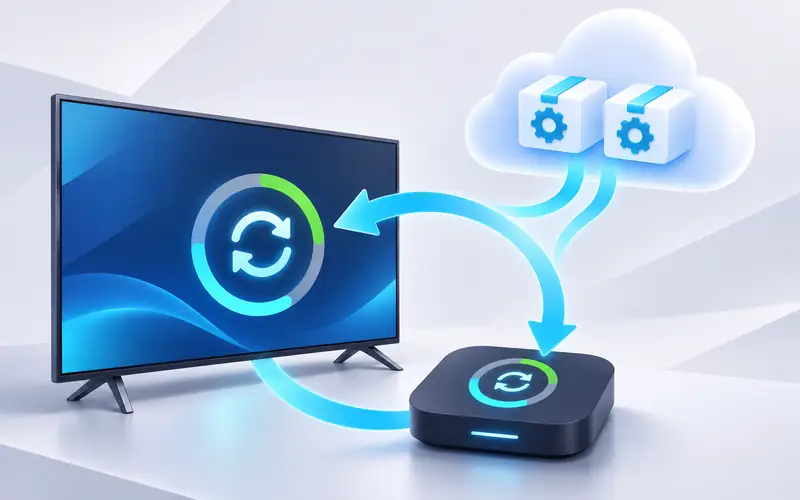
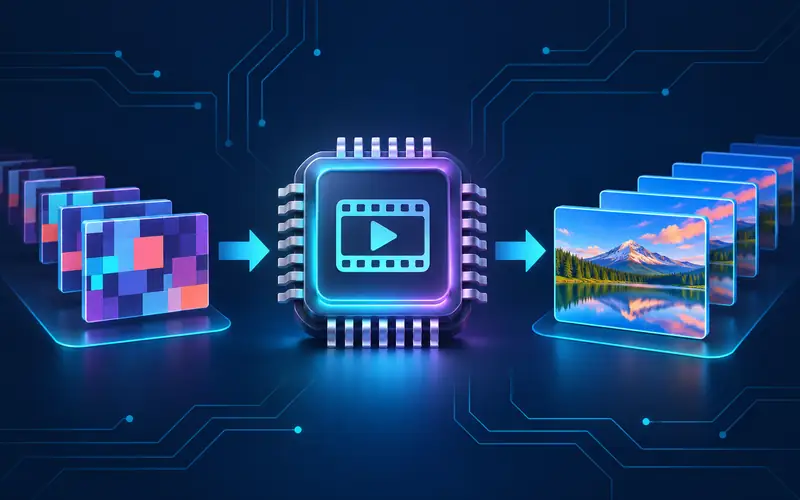
A container such as MPEG-TS, MP4, or Matroska carries encoded media; it is not the codec itself. A device may recognize the container but fail on the video profile, resolution, frame rate, bit depth, or audio format.
Video families include H.264/AVC, H.265/HEVC, VP9, and AV1; audio formats include AAC, AC-3, E-AC-3, and PCM. Android and LG both document platform- and device-specific variation, so check the exact model.
Hardware decoding uses device media circuitry; software decoding uses more CPU. Where a trusted player exposes the option, switching one affected stream between them is a useful test, not a guaranteed fix.
Safe decoder test
- Write down the current playback setting or take a credential-free photo.
- Choose one affected stream and one known-working control stream.
- Change only the documented video decoder or playback engine option.
- Replay both streams and watch for picture, sound, synchronization, heat, and stutter.
- Restore the original setting if there is no clear improvement.
- Do not change buffer size, output format, resolution, and decoder in the same test.
For silence, inspect available audio tracks first. With passthrough enabled, downstream equipment must understand the compressed format; disabling passthrough for one test can isolate that route.
Do not install random codec packs. Use official updates, a maintained player, an authorized alternate stream, or a compatible device rather than bypassing protection or forcing unstable software.
Restart the App, Clear Cache Safely, and Install Supported Updates
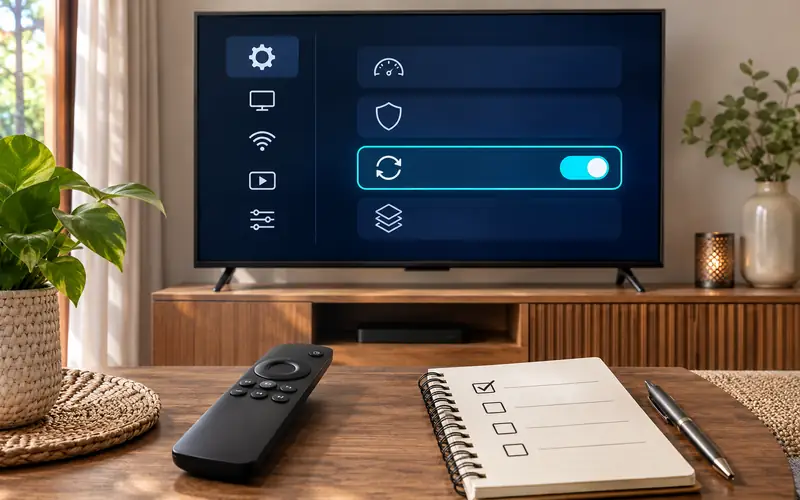
Close the player fully and reopen it. If the device does not expose a reliable force-close action, restart the device through its menu. A restart clears temporary playback state and can recover a stalled decoder without erasing the account. After restart, test the same item before making another change so you know whether the restart mattered.
Where separate Clear cache and Clear data controls exist, use cache first; app data commonly contains logins and settings. Do not apply Android menu instructions to LG webOS or Apple TV.
Check for a player update in the official app store and an operating-system or firmware update in device settings. Read release notes when available, install with stable power, and restart afterward if the manufacturer recommends it. A new app can rely on media or security components missing from old firmware; old apps can also contain playback bugs already fixed by the developer.
Before reinstalling, preserve the official store path, credentials, activation details, and supported backup. Reinstall for one corrupt app, not when every app has lost output. Keep factory reset as a last resort.
Check HDMI, Display Output, Mute, Passthrough, and Audio Formats
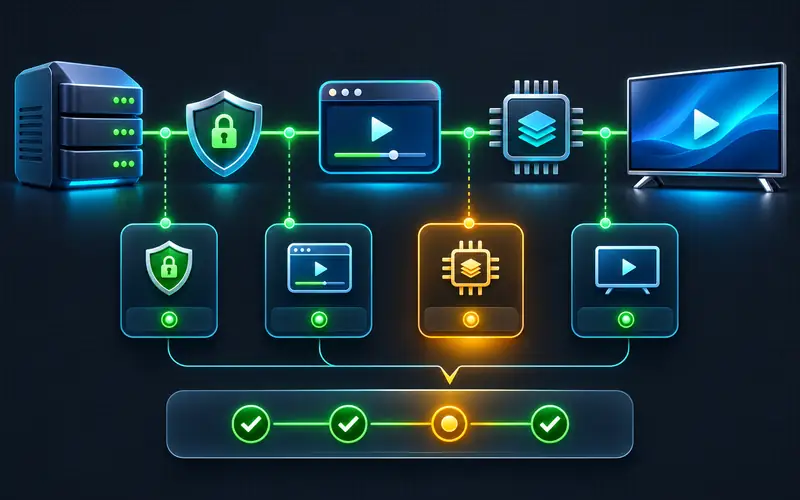
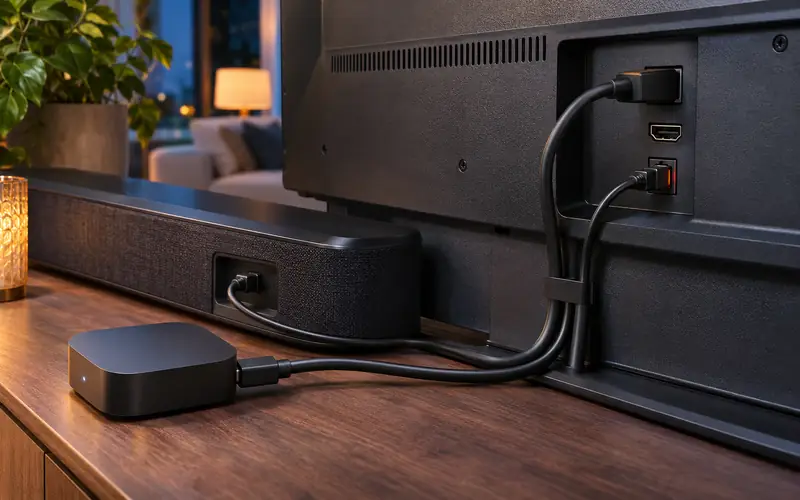
HDMI matters for external devices, not a black video area inside a native TV app whose menus remain visible. Confirm the input, reseat the cable as directed, and test the player directly on the TV instead of through a switch, receiver, or soundbar.
Amazon and Apple both recommend direct-to-TV comparison tests when HDMI or sound equipment may be involved. Use a cable rated for the required signal, but do not expect a cable to fix an app-level codec failure.
For a black external-device display, test a conservative supported output mode. A brief mode-switch blackout can be normal; a picture that never returns can indicate an unsupported mode or failed handshake.
No-sound checks in the right order
- Confirm the player, television, streaming device, soundbar, and receiver are not muted.
- Select the intended audio track in the player and try the default track.
- Confirm the TV's sound output targets the speakers or receiver you are actually using.
- Bypass Bluetooth, a receiver, or a soundbar for one direct-to-TV speaker test.
- Turn audio passthrough off temporarily where the player documents that option.
- Try a supported alternate audio format or PCM-style output documented by the device maker.
- Run the television or streaming device's audio self-diagnosis if available.
If another app produces sound, the basic route works. If only the IPTV player is silent, check its track, engine, passthrough, and version. If one channel is silent everywhere, report that item to the provider.
Validate Playlist and Stream Access Without Exposing Credentials
Confirm the account loads in the provider's supported workflow. Check status, connection limits, and signed-URL freshness. A URL may be valid in form but expired or app-restricted; never edit tokens or strip parameters.
Avoid public URL checkers because playlists may embed credentials or tokens. When asking Zorba IPTV or another authorized provider for support, share the item, time, error, player, and device—not the full URL.
DRM-protected services may require the official app, compatible device security, valid entitlement, and an intact output path. A generic player may not open them. Never bypass DRM or HDCP; restore the supported path or contact the authorized service.
| Evidence | Contact | Information to provide |
|---|---|---|
| Only one player fails | App developer | App version, device, OS, symptom, and comparison result |
| One source item fails everywhere | Authorized provider | Item, category, time, error, and tested devices |
| Account or entitlement rejected | Authorized provider | Account reference without password and exact error |
| Every app loses picture or sound | Device or TV manufacturer | Model, firmware, self-test result, and connection path |
| Protected service requires unsupported playback | Rights holder or official service | Official app, entitlement, device, and region details |
Comparing authorized quality variants can reveal a device format limit because they may use different codecs. Report the exact working and failing variants without claiming a broader server conclusion.
Apply Device-Specific Checks and Prevent Repeat Playback Failures
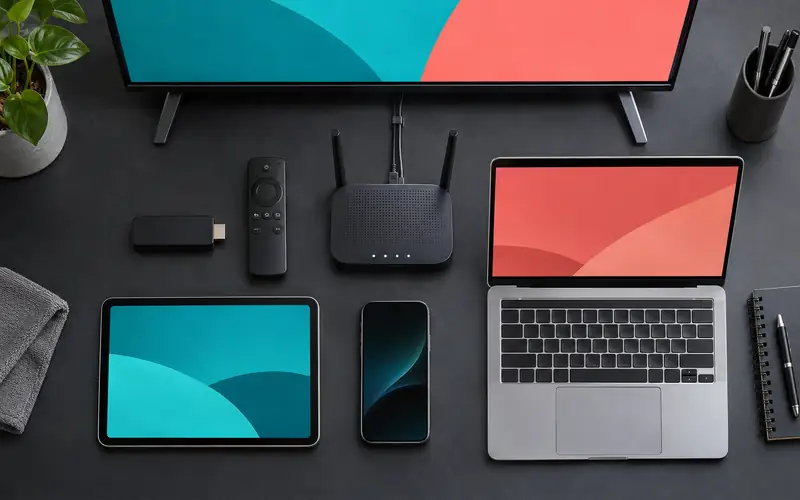
On LG or Samsung TVs, use platform-specific store, update, storage, picture-test, and sound-test tools; do not apply Android APK or cache instructions. For model-specific app and webOS checks, use the IPTV on LG Smart TV setup guide. A supported external device may be more practical when the TV cannot decode the source.
On Fire TV and Android TV or Google TV, compare a maintained player, inspect documented decoder options, clear cache before data, and use available audio/video diagnostics. Record the model and OS build; the Firestick IPTV decision guide explains the Fire OS and Vega OS compatibility boundary.
On Apple TV, update tvOS and inspect Video and Audio settings; use Apple's direct-to-TV HDMI and alternate-audio-format tests. On mobile, check silent mode, Bluetooth, casting, and the selected output.
On computers, update the player and graphics driver, then test hardware acceleration as one variable. Bypass docks, adapters, or receivers for a direct display test.
Preventive playback practices
- Keep the player and device firmware current through official channels.
- Maintain enough free storage for app updates and temporary data.
- Keep a short record of known-working decoder and audio-output settings.
- Avoid importing the same playlist repeatedly or installing unverified clones.
- Test major setup changes with one known-working stream before changing more.
- Protect URLs and credentials in screenshots, notes, and support conversations.
- Use authorized sources and the official app whenever DRM or entitlement requires it.
Contact the app developer for one-app failures, the authorized provider for cross-device source or account failures, and the device maker when every app loses output or self-diagnosis reports hardware trouble.
After isolating the layer, use the contact page for account help and review pricing only after compatibility is clear.
Once playback is restored, compare Smart TV player options or the dedicated Firestick player comparison if the original app remains the weak point.
FAQ
Why does IPTV show a black screen but still play audio?
The audio path is working while the video path is not. Test other streams, another compatible player, supported video formats, and one documented hardware-versus-software decoder change. If every app loses picture, inspect the display or HDMI path instead.
Why is there video but no sound in my IPTV player?
Check mute on every device, select the default audio track, confirm the intended speaker output, and test with passthrough disabled where supported. A channel-specific audio codec or empty track can also cause silence.
Should I switch from hardware to software decoding?
Only as a controlled test when the trusted player exposes that option. Change one setting, compare an affected and working stream, and restore the original setting if performance, synchronization, or stability gets worse.
Can an HDMI cable cause an IPTV black screen?
Yes, when playback comes from an external device and the whole output is blank, unstable, or shows No Signal. HDMI is less likely when a native TV app's menus remain visible around a black video area.
Why does only one IPTV channel have no picture or sound?
That stream may be offline, malformed, encoded differently, or restricted. Test the exact item on another authorized compatible device and report the channel, time, and error to the provider instead of resetting the entire app.
Will clearing the app cache delete my IPTV login?
A true cache-only control normally removes temporary files, but Clear data commonly removes logins and settings. Menu behavior varies by platform, so follow the device documentation and preserve credentials before making changes.
Research Sources
These sources were used to verify time-sensitive sports details, app behavior, device platform constraints, and compatibility claims.