The best IPTV for Firestick setup in 2026 combines two separate things: a compatible IPTV player application and a legitimate content subscription. Neither one replaces the other. Your Fire TV model and operating system decide what app can run, while the subscription's terms and content rights decide what you may watch. This page is the broad decision hub; the linked guides handle installation, individual players, and troubleshooting in depth.
This Zorba IPTV guide helps you evaluate a compatible setup; it is not a claim that one player or subscription is best for everyone. For the service-buying side, read the IPTV subscription buyer's guide before comparing plans.
What Is the Best IPTV for Firestick in 2026?
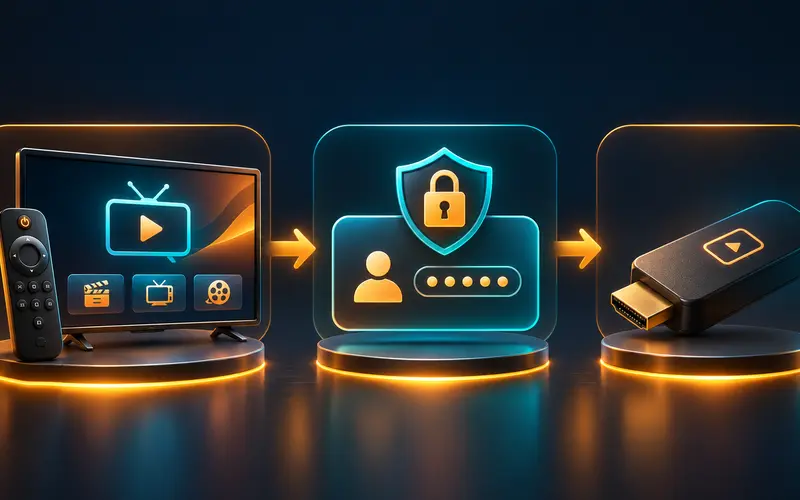
There is no single best answer for every Firestick owner. The right combination depends on the exact Fire TV model, whether it uses Fire OS or Vega OS, which apps are available through the appropriate store, how comfortably the app works with the remote, and whether an authorized subscription supports that player’s login method.
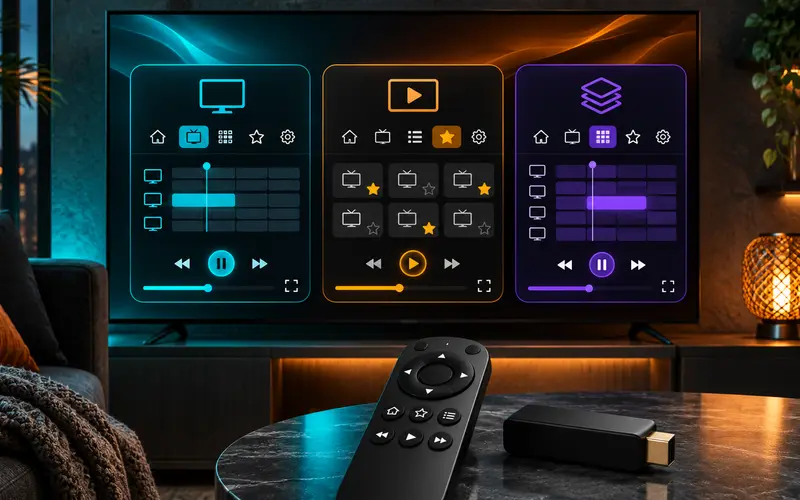
A polished player can make channel groups, favorites, search, and the electronic program guide easier to use. It cannot supply legitimate channels on its own. Likewise, a subscription may provide account details but still require a compatible player. Keep the player, account, and content authorization as three separate checks.
For an existing comparison of player interfaces and setup tradeoffs, see Zorba's guide to IPTV players for Firestick. This decision guide focuses on whether the device, player, subscription, and authorized content are a suitable match.
Check Your Firestick Model Before Choosing an IPTV App
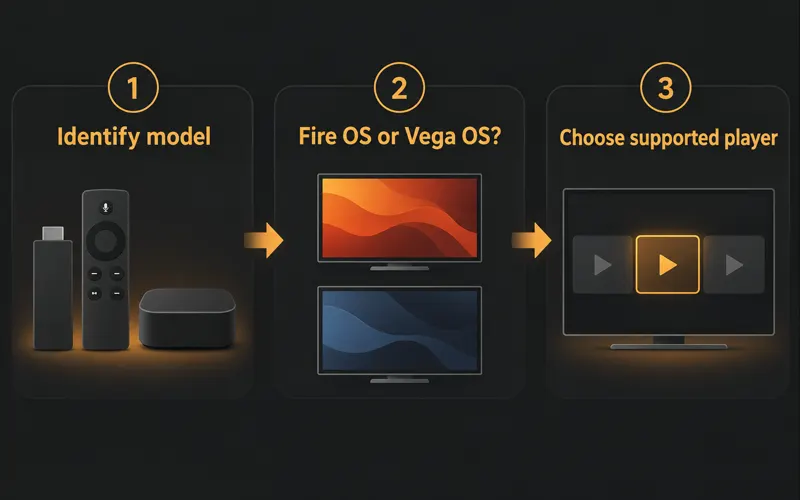
Check Settings, then My Fire TV, then About, and record the device type and software information shown there. This matters because Fire TV devices do not all run the same software. Amazon’s current Fire OS documentation lists multiple Fire OS generations and a device table; it also lists the 2026 Fire TV Stick 4K 3rd Gen as a Vega OS device rather than an Android-based Fire OS device.
Amazon describes Fire OS as Android-based and says Android apps will usually run on Fire devices, subject to app and device requirements. That does not mean every Android APK works everywhere. Amazon's Vega guidance states that Vega is not Android and has no Android Runtime or APK support, so Fire OS sideloading instructions must not be applied to a Vega OS model.
Do not use universal sideloading advice. Start with the Amazon Appstore or another source explicitly identified by the app publisher for your device. If the app is not available for your model or operating system, choose a supported alternative instead of bypassing compatibility or security controls.
Best IPTV Player Apps for Compatible Firestick Devices
| IPTV player | Best suited for | Guide and login support | Compatibility check |
|---|---|---|---|
| TiviMate | Remote-first guide, favorites, and playlist management | Official listing describes playlists and an electronic program guide | Designed for Android TV; confirm current availability for an Android-based Fire OS model. Do not assume its APK runs on Vega OS |
| IPTV Smarters Pro | Users whose authorized provider supports its account flow | Provider-supplied login methods; features vary by version | Confirm the current store listing or publisher instructions for the exact model |
| OTT Navigator | Users who need a configurable Android TV-style player | Playlist or provider-supported credentials; app-dependent guide | Confirm current publisher, availability, and device requirements |
| Store-supported alternative | A model or region with limited player options | Varies by app and provider | Use the relevant app store and publisher documentation for the operating system |
TiviMate's official website identifies the product as an IPTV player, and its Google Play listing says it is designed for Android TV and remote navigation. The listing describes playlist and EPG features; it does not turn TiviMate into a content subscription. Confirm the publisher and current installation path for an Android-based Fire OS device, and do not assume an Android APK is compatible with Vega OS.
For IPTV Smarters Pro, OTT Navigator, and any other player, verify the publisher, present app-store listing, supported device, and privacy terms at the time you install. Availability may differ by country, store, device generation, and operating system. A trustworthy evaluation does not turn an old installation video into a promise of current compatibility.
How to Choose an IPTV Subscription for Firestick
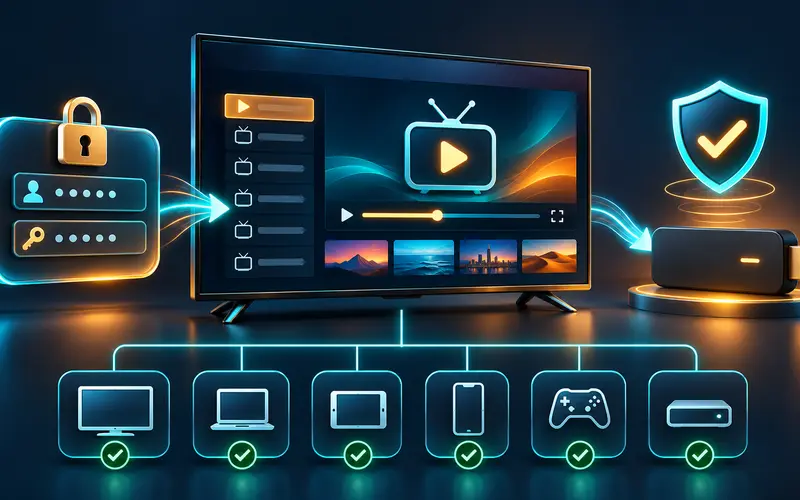
Start with the player and device you can actually use, then verify whether the subscription supports that player’s permitted account format. Providers may supply an M3U playlist, an Xtream Codes-style login, or another account workflow. Those credentials should be entered only in a trusted, supported app and never posted in screenshots or shared messages.
Next, read the subscription terms. Check the number of simultaneous connections, billing period, renewal details, support channel, and the content that is authorized for your location. A Firestick’s ability to run an app does not establish that a stream is licensed or available in the United States.
After applying the subscription checklist linked in the introduction, Zorba TV visitors can review live pricing and request a trial subject to review through the trial page.
Zorba does not claim in this article that it has been independently tested on every Fire TV device or that it holds any particular program license. Confirm compatibility, terms, and lawful availability before placing an order.
How to Set Up IPTV on a Compatible Firestick
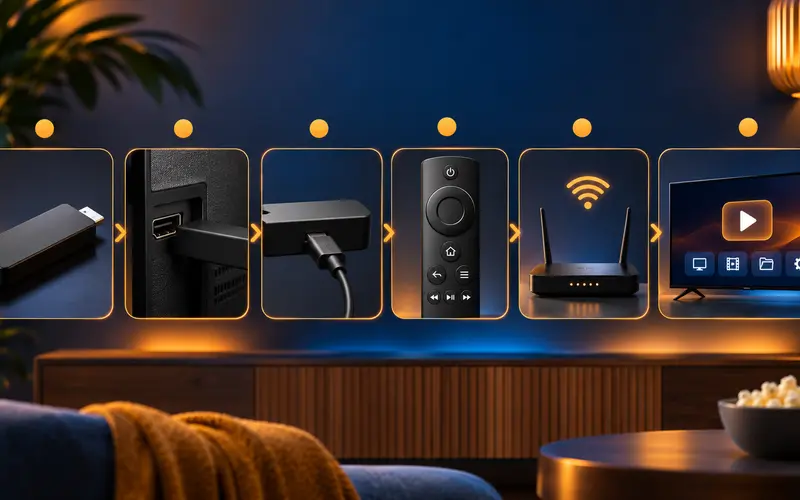
Identify the model and OS, obtain a supported player through its documented store or publisher path, and sign in only with account details issued by an authorized provider. If the player is unavailable for the device, stop rather than applying instructions written for another operating system.
For the site’s detailed Firestick workflow, use the How to Install IPTV on Firestick guide. TiviMate users can also review the TiviMate Firestick setup guide; IPTV Smarters users can use the IPTV Smarters Pro guide.
Firestick IPTV Buffering: Causes and Fixes
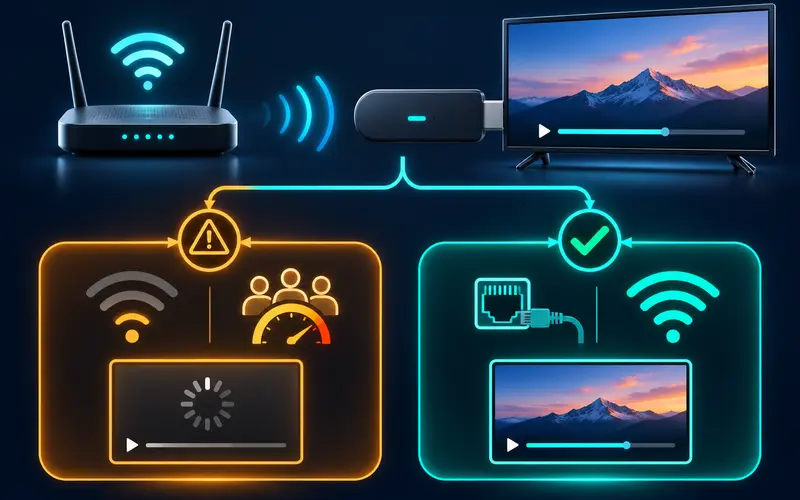
Buffering has more than one possible cause. A weak Wi-Fi signal, home-network congestion, an outdated player, limited device storage, an aggressive video-quality setting, or a provider-side issue can all produce pauses. Start with the local causes you can test before assuming one explanation fits every stream.
For a quick boundary test, move closer to the router, pause major downloads, check system and app updates, and use a sustainable resolution. If only one authorized stream fails while other services work, record the time and exact error for the provider rather than repeatedly changing unrelated settings.
For a step-by-step diagnostic order, see the IPTV buffering and freezing troubleshooting guide. No player or provider can truthfully guarantee zero buffering across every network, server, and peak-time condition.
Firestick IPTV Settings for Better Playback
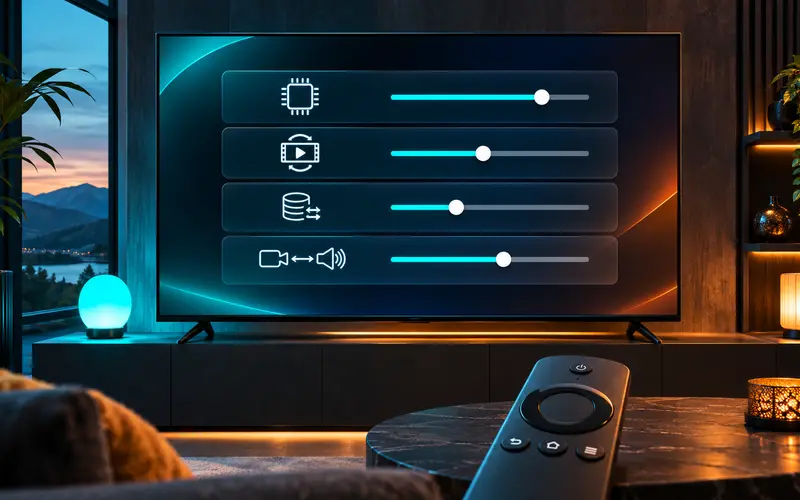
Keep the Fire TV system and player current, use automatic time settings, and let the EPG finish its first refresh before judging guide quality. Choose a video quality that suits your connection rather than a maximum setting that repeatedly stalls. If an app has buffer, decoder, or EPG options, consult that app’s official documentation instead of copying a random configuration.
Storage and network stability are universal considerations; individual playback menus are not. Fire TV models, player versions, and operating systems can expose different settings. Take note of a working configuration before changing several variables at once. If playback becomes black or silent rather than merely slow, use the IPTV black-screen and no-sound guide before making more decoder changes.
Firestick vs. Smart TV for IPTV
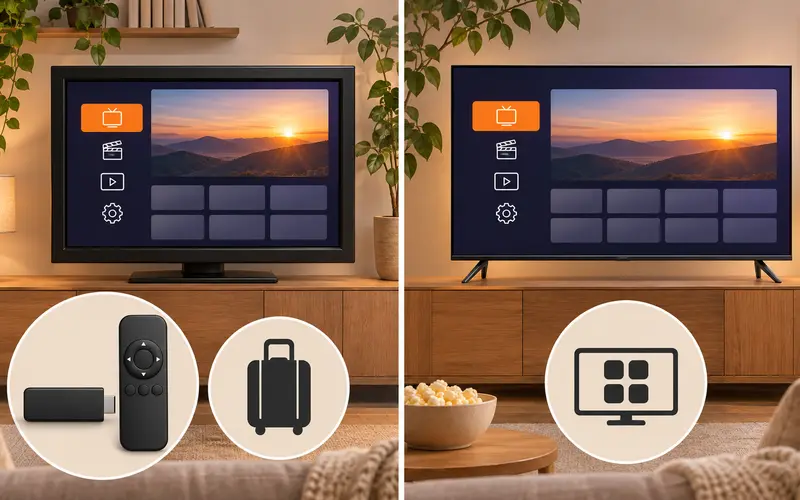
| Consideration | Firestick or Fire TV | Smart TV |
|---|---|---|
| App availability | Depends on the exact Fire OS or Vega OS model and Amazon's current catalog | Depends on the TV brand, model, operating system, region, and store |
| Hardware life | The streaming device can be replaced without replacing the television | Player performance and updates remain tied to the television |
| Remote and setup | Separate device, power, HDMI input, and remote; typically remote-first | One screen and remote, but navigation quality varies by app |
| Performance | Newer external hardware may improve an older compatible screen | Recent TVs may be sufficient; older processors can struggle with large guides |
| Portability | Can move between compatible screens or travel locations | Native app remains on one television |
| Best fit | Useful when the TV's store lacks a suitable app or independent upgrades matter | Useful when a supported native app offers the simpler household workflow |
A Firestick can be convenient when its supported player is easier to navigate than the app choices on a television. A Smart TV can be simpler when a compatible player is available directly in its store. Neither is automatically better; choose the screen that supports the legitimate app and account workflow you need.
Consider the whole viewing routine, not just installation day. A separate streaming device can receive app updates independently of an older television and can move between rooms or trips, while a native TV app means one less HDMI device and power cable. On the other hand, an app that is easy to find on one platform may not be offered on another. Recheck availability after a television or streaming-device upgrade rather than assuming the former setup will transfer.
Remote-control behavior is worth a brief real-world test. Make sure everyone who uses the screen can move through the guide, favorites, search, captions when available, and playback controls. The simpler supported option is often the better household choice even when another player has more features.
FAQ
What is the best IPTV for Firestick in 2026?
The best setup is a compatible player plus an authorized subscription that works on your exact Fire TV model. Check the operating system, app availability, account format, and terms before choosing.
Does IPTV work on every Firestick?
No. Fire TV models and operating systems differ. Confirm your model, whether it uses Fire OS or Vega OS, and whether the intended app is currently supported.
Do I need an IPTV player and a subscription?
Usually, yes. A player displays account content, while a subscription supplies authorized account access. A player does not automatically include channels.
Can I use TiviMate on Firestick?
TiviMate is designed for Android TV. It may be usable on a compatible Android-based Fire OS model through the publisher's current supported path, but compatibility and availability must be checked for the exact device. Do not assume its Android APK works on Vega OS.
Why does IPTV buffer on Firestick?
Possible causes include Wi-Fi signal, household congestion, device storage, app updates, resolution settings, and provider-side performance. Test local network causes first.
Can I install an Android IPTV APK on every Firestick?
No. Android APK instructions apply only where the exact Android-based Fire OS device and app publisher support them. Amazon states that Vega OS is not Android and does not run APK packages.
Research Sources
These sources were used to verify time-sensitive sports details, app behavior, device platform constraints, and compatibility claims.