To set up IPTV on an LG Smart TV, identify the exact TV model and webOS version, install a compatible player from LG's official Apps or Content Store interface, and add the M3U playlist or Xtream-style credentials supplied by an authorized provider. App availability and supported login methods vary by TV model, webOS generation, and LG Services Country, so verify them on the actual television before paying for an app.
This guide is specific to LG webOS. If you are still choosing between television platforms, compare the broader Smart TV IPTV app guide first. Use only content you are authorized to access.
Check LG webOS Compatibility, Model, and Software Version
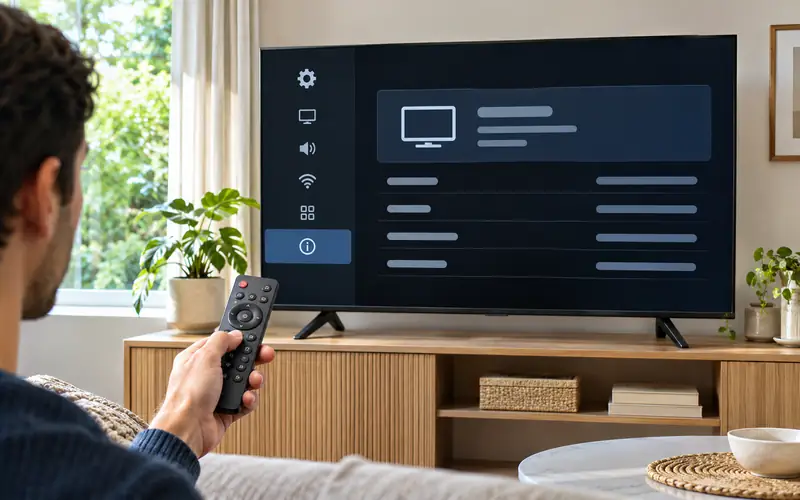
LG TVs do not share one app catalog. Availability depends on model, webOS generation, sales region, LG Services Country, and developer support. Even two LG sets may show different results.
Under All Settings, find TV Information or About This TV; recent models place it under Support. Record the full model and software version, or inspect the physical label.
Confirm internet access, LG Account status where required, accepted agreements, free storage, and the correct LG Services Country. LG says region and model affect availability. Do not change country settings to evade restrictions.
| Check | Where to look | Why it matters |
|---|---|---|
| Model and software | Settings or the TV's physical label | Determines platform and app compatibility |
| LG Services Country | Location settings | Controls the regional app catalog |
| LG Account and agreements | Account and privacy settings | May be required to install or launch apps |
| Free storage | App management or storage settings | A full TV may refuse an install or update |
| Network | Wired or Wi-Fi connection settings | Required for store access, login, playlist loading, and updates |
Older televisions may install a compatible player yet struggle with a large playlist or guide. If the interface remains slow after basic cleanup, a supported external streaming device may be more practical.
Find and Install an IPTV Player from LG's Official App Interface
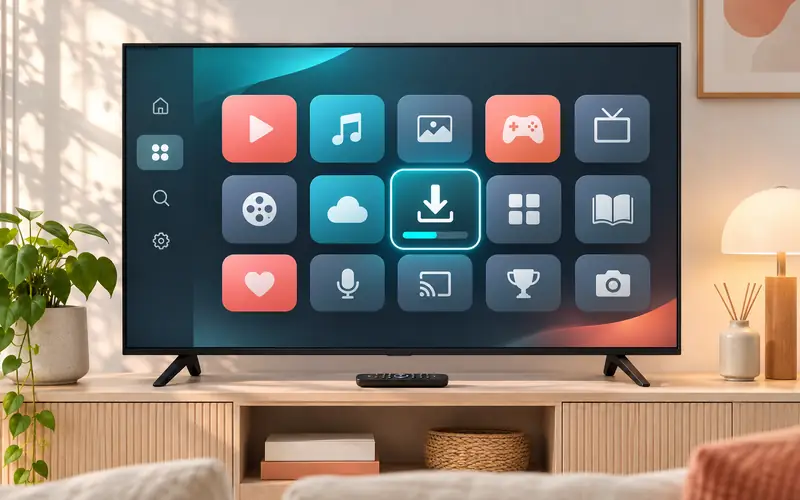
Press Home, open Apps or LG Content Store, and search for a player by its exact publisher-approved name. Select the listing, read its device requirements and privacy information, then choose Install. LG's menu labels and screenshots vary by model year, but the supported consumer path remains the TV's own app interface. You can also use LG's online Content Store search with the correct country and model to investigate availability before sitting down with the remote.
Do not treat a search result from a phone, Android TV, Samsung TV, or an old tutorial as proof that the same app exists for LG webOS. Similar names can refer to separate builds or unrelated publishers. If the intended app is missing on the actual television, choose another player that explicitly supports your account format or use a compatible external device. An Android APK, Downloader tutorial, or unknown-sources switch is not a native LG webOS installation method.
Evaluate the listing before installation
- Confirm that the listing appears in the official LG app interface for this exact TV.
- Verify the developer or publisher rather than trusting a familiar-looking icon.
- Check whether the player accepts M3U, Xtream-style credentials, or the specific format your provider supplies.
- Review whether EPG, captions, multiple audio tracks, favorites, and remote navigation are supported if you need them.
- Read trial, activation, renewal, and privacy terms before entering any account information.
Before committing to a player, test the complete remote workflow: open the guide, move between categories, save a favorite, search, select an audio or subtitle track if needed, and return to live playback. A feature-rich phone interface may be awkward on a television, and an app that imports a playlist successfully can still be a poor everyday choice if basic remote actions are unreliable.
Also check what happens when the trial ends. Record whether any app activation belongs to the television, an account, or a limited term, and confirm how to remove stored playlist data. These details reduce surprises after a TV replacement, app reinstall, or account change.
A player fee is separate from the content provider. Paying for either side does not guarantee that the other supports it, so confirm the login method before paying.
After installation, follow the verified app's current on-TV instructions or official secure portal. Check the portal address carefully before uploading anything.
Configure an M3U Playlist on LG TV When the Player Supports It
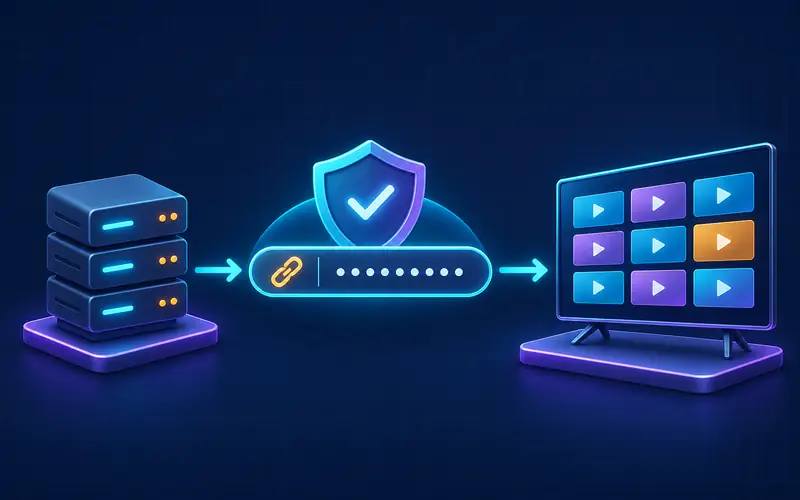
An M3U playlist is a list of media entries and stream locations. Your authorized provider may supply a full M3U or M3U8 URL, and the player may ask you to type it on the television or add it through a paired web portal. Use the method shown by the verified player. Do not paste the URL into a search engine, public playlist checker, forum, or support screenshot.
Safe M3U setup sequence
- Copy the playlist URL directly from the provider's account area or original message.
- Check for missing characters, accidental spaces, and confusion between similar characters.
- Give the playlist a neutral local name that does not expose the provider or username.
- Save it, allow the first channel and guide import to finish, and test a small sample.
- Close and reopen the app once to confirm that the playlist remains saved.
If the app uses a pairing portal, the television may show a device identifier or temporary code. Enter it only on the official HTTPS portal linked by the app publisher. A permanent MAC address or playlist URL is sensitive enough to avoid sharing publicly. Remove screenshots containing identifiers before sending a support request.
Playlist and guide data are separate. Confirm whether the player derives its EPG from the playlist or accepts XMLTV before adding another URL. Avoid duplicate imports.
If the guide is blank, late, or mismatched after channels load, use the focused IPTV EPG troubleshooting guide rather than deleting a working playlist immediately.
Configure Xtream Codes-Style Login When Supported
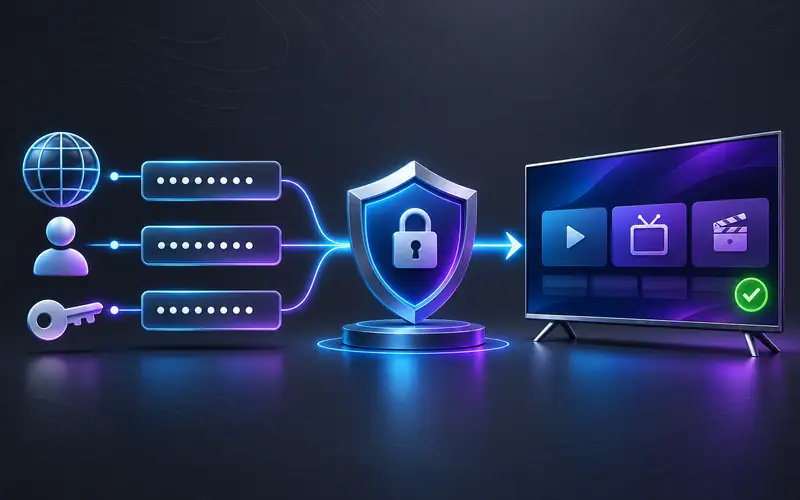
A player that supports an Xtream-style login usually asks for a server or portal address, username, password, and a local profile name. These fields are an account convenience used by many independent players; they do not establish who owns the content or whether access is lawful. Use only credentials from an authorized provider and only in a player you trust.
Enter the server address exactly as issued, including the correct http or https scheme and any port. Do not automatically add paths such as a playlist filename unless the provider or player specifically requires them. Enter the username and password as separate fields, preserve capitalization, and avoid smart quotes or spaces introduced by copying from formatted messages.
| Field | Correct approach | Common mistake |
|---|---|---|
| Profile name | Choose any private local label | Assuming it must match the account name |
| Server address | Use the complete issued address and port | Omitting the scheme, port, or a character |
| Username | Copy exactly and preserve case | Adding a trailing space |
| Password | Enter privately and verify ambiguous characters | Sharing it in screenshots or typing the wrong case |
| Output or player option | Leave the supported default unless instructed | Changing advanced settings before the first test |
Let the initial synchronization finish. For an authentication error, compare every field and confirm account status. If the same login works in another authorized player, investigate LG app support and URL handling.
For a deeper explanation of the credential format and safe support practices, read the Xtream Codes IPTV setup guide.
Understand the Player, Provider, Privacy, and Security Boundaries
The LG app is the player layer; the provider supplies account and source access. LG operates the platform and store but does not validate third-party playlists or content rights. Zorba TV keeps these roles separate throughout its device guidance.
Use unique credentials where allowed, read the player's privacy policy, prefer verified HTTPS portals, and never reuse an important password. Delete unused profiles and replace exposed credentials through the provider.
Do not send a full playlist URL, username, password, device identifier, or payment details in a public comment. For support, provide the TV model, webOS or software version, player name and version, exact error wording, time of the test, and whether one or all streams are affected. If a screenshot is useful, crop or cover credentials and identifiers first.
If setup uses a phone or computer portal, bookmark only the verified publisher address and sign out of shared devices afterward.
Fix Login, Playlist Loading, and EPG Problems
Name the symptom first. Authentication errors point toward credentials, server format, status, or support; an empty imported playlist points toward parsing or source data; missing guide listings point toward EPG.
| Symptom | Likely layer | First check |
|---|---|---|
| Login rejected immediately | Credentials or server format | Compare all fields with the original account details |
| Playlist stays at loading | App, playlist size, network, or source | Restart once, then test the account in another authorized compatible player |
| Channels appear but none open | Account, stream format, or source | Check account status and test more than one stream |
| Only one channel fails | Specific stream | Record the channel and time; do not rebuild the whole app |
| Guide blank for all channels | EPG source or refresh | Run one guide refresh and verify any separate EPG URL |
| Guide times are shifted | TV time zone or EPG offset | Confirm automatic time and daylight-saving settings |
Restart the player and TV before clearing data. If one app remains broken, update it; LG recommends reinstalling and contacting the app provider for app-specific failures.
Before reinstalling, preserve the official installation path, account details, and activation information. LG says a factory reset deletes accounts and apps, so reserve it for television-wide problems and follow model-specific guidance.
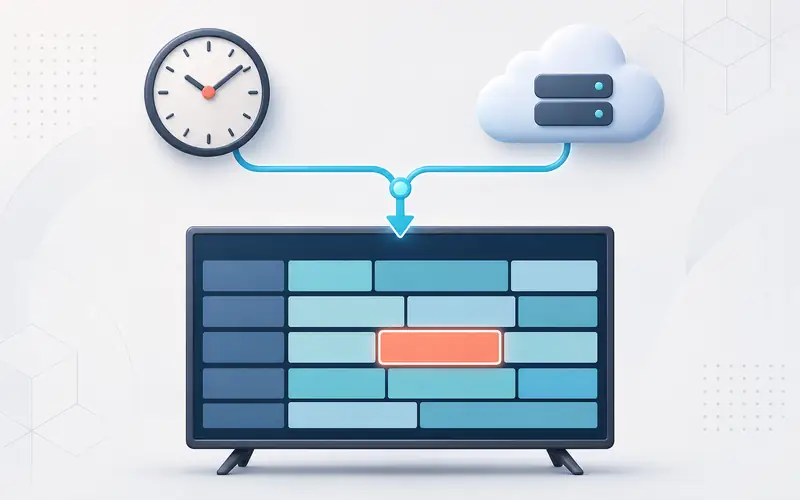
For EPG problems, refresh once, confirm the automatic clock and time zone, then check whether separate XMLTV data and channel identifiers are required. Avoid random guide URLs.
Troubleshoot Playback and Network Problems on LG webOS
Test several authorized streams and a separate legitimate video app. All-app failure points toward the TV or connection; one-player failure points toward that app; one-stream failure everywhere points toward the source.
Compare Wi-Fi with Ethernet if practical. If wired playback works, improve the wireless path. If both behave the same, investigate the app, TV, account, and source.
Compatibility varies by model. LG documents codecs by webOS version with model-specific exceptions. A playlist can load while a stream's codec, profile, resolution, or audio format fails. Compare another stream and change only one documented playback option at a time.
A disciplined LG playback sequence
- Test one known-working stream and one affected stream.
- Restart the player and power-cycle the TV normally.
- Update the player and TV software through their supported interfaces.
- Compare wired and wireless networking without changing other variables.
- Check available storage and remove only unused apps.
- Test the authorized account in another compatible player or device.
- Record the result before changing an advanced playback option.
For stops, pauses, and freezing, use the separate IPTV buffering guide. If video stays black or audio remains silent instead of repeatedly loading, follow the IPTV black-screen and no-sound diagnostic instead.
Avoid Common Setup Mistakes and Know When to Get Support
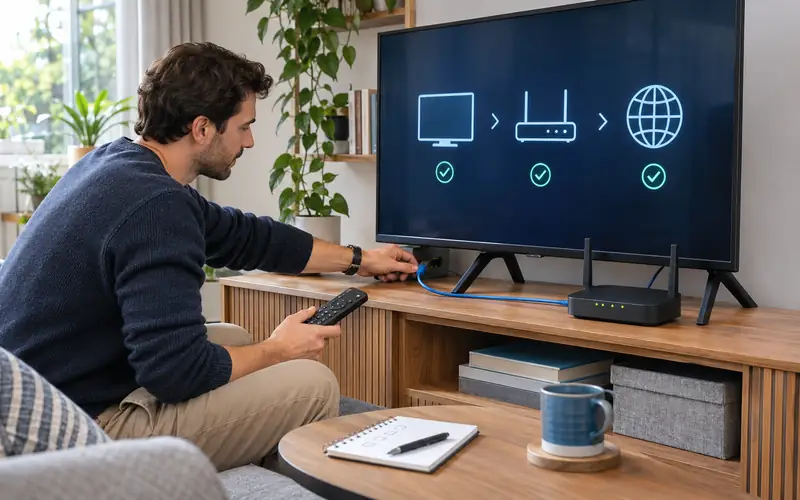
The most common setup mistake is following instructions for a different operating system. Other avoidable errors include installing a look-alike app, entering the playlist into the wrong login screen, exposing credentials through a portal found in a search ad, duplicating playlists, changing several decoder options at once, or assuming that every missing guide entry requires a new subscription.
Contact the app developer when the problem is limited to one verified player, the app crashes, a promised feature is missing, or the pairing portal rejects the TV. Contact the authorized provider when credentials are inactive, account limits appear, one or more source streams fail across compatible players, or the issued playlist or EPG data is incomplete. Contact LG when the app store, account, network, software update, picture test, or other television-wide functions fail outside the IPTV player.
For support, provide the TV model, software and player versions, login method, affected scope, exact error, and completed checks—never the password or playlist URL.
Readers evaluating Zorba IPTV can review the current pricing options or use the contact page for account and setup questions. Verify the app on your TV first, understand the provider's terms, and choose a plan only after the supported login method is clear.
FAQ
Can I install IPTV on every LG Smart TV?
No. The television must run a supported webOS version and offer a compatible player for its model and region. Check the actual LG app interface and model-specific listing before buying an app or service.
Can I install an Android APK directly on LG webOS?
No, not as a normal native consumer installation. Android APK instructions are for Android-based devices, while LG televisions use webOS. Choose an app in LG's supported store or use a compatible external device.
Which IPTV app should I use on an LG TV?
Use a verified app currently offered for your exact TV that accepts the authorized login format you have. Availability changes by model, webOS generation, country, and developer support, so a universal app recommendation would be misleading.
How do I add an M3U playlist to an LG Smart TV?
Install a compatible webOS player, then use its supported on-TV entry or official pairing portal. Copy the provider-issued URL exactly and keep it private because it may embed account credentials.
Why does my playlist load but the EPG stay blank?
The player may require a separate XMLTV source, a guide refresh, correct channel identifiers, or accurate TV time settings. Verify those layers before deleting a playlist that already loads channels.
Why is an IPTV app missing from the LG Content Store?
The app may not support your TV model, webOS version, or region, or the developer may have removed it. Confirm the LG Services Country and model, then choose a currently supported alternative rather than forcing an Android installation.
Research Sources
These sources were used to verify time-sensitive sports details, app behavior, device platform constraints, and compatibility claims.
- LG USA: How to use the LG Content Store with webOS
- LG USA: How to install and delete apps on an LG TV
- LG USA: How to find LG Content Store apps
- LG webOS TV Developer: Audio and video formats on webOS TV 6.0
- LG USA: Update LG TV software and automatic updates
- LG USA: Fix apps that freeze, crash, or will not load